Blog
How to Install OpenClaw on Ubuntu
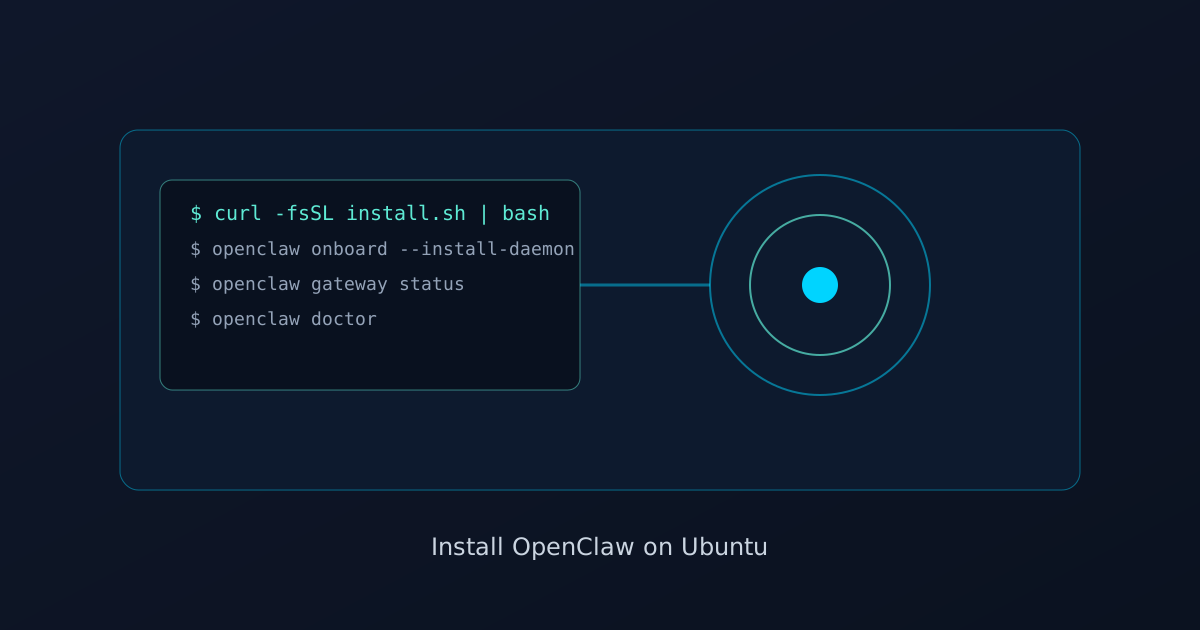
If you want to install OpenClaw on Ubuntu, the fastest path is simple: install it with the official script, run openclaw onboard --install-daemon, verify the gateway is running, then open the dashboard and test your first chat. For most Ubuntu setups, that gets you from zero to a working agent in about five minutes.
The tricky part is not the happy path. It is everything around it: Node version mismatches, missing provider auth, gateway service issues, and confusion about whether the install, onboarding, and gateway steps are all separate. This guide covers the whole path cleanly so you can get OpenClaw working on Ubuntu without guessing.
If you want the general overview first, read the fastest way to install OpenClaw. If you want the Ubuntu-specific workflow, use this guide.
What you need before you start
According to the OpenClaw getting started docs, you need:
- Node.js 24 recommended, or Node 22.14+
- One model provider API key, such as OpenAI, Anthropic, or Google
- A normal Ubuntu shell environment with outbound internet access
Check Node first:
node --versionIf Node is too old, fix that before you install OpenClaw. A lot of first-time failures come from trying to debug OpenClaw when the real issue is the underlying Node runtime.
Step 1: Install OpenClaw on Ubuntu
The official Linux install path is:
curl -fsSL https://openclaw.ai/install.sh | bashThat installs the CLI and gets the local runtime ready.
If you prefer a more cautious setup, read the script first before piping it to bash. That is reasonable on any server or production-like machine.
After install, verify the CLI is available:
openclaw --helpIf that command fails, the install likely completed but your shell PATH has not updated yet. Open a new shell or reload your shell config.
Step 2: Run onboarding
This is the step that turns a raw install into a usable setup.
openclaw onboard --install-daemonThis does a few important things:
- walks you through provider setup
- stores the model/provider config
- configures the gateway
- installs the managed gateway service
The official docs support several onboarding modes, but for a normal Ubuntu machine the default interactive flow is the right move.
If you are setting things up remotely or in automation, non-interactive mode also exists. For example, the docs show non-interactive custom provider and Ollama flows. That matters later if you are provisioning multiple machines.
Step 3: Verify the gateway is running
After onboarding finishes, check gateway health:
openclaw gateway statusYou want to see the gateway running and listening on the expected port.
If you want a deeper health check, use doctor:
openclaw doctorThe OpenClaw doctor command is built for exactly this stage. It checks gateway health, channel health, service config, and a few common config mistakes.
If you already know something is broken and want OpenClaw to attempt safe repairs:
openclaw doctor --repairStep 4: Open the dashboard and test chat
Once the gateway is healthy:
openclaw dashboardThat opens the control UI in your browser. Send a test message. If you get a reply, the install is functionally complete.
At this point, Ubuntu setup is done. Everything after this is refinement, not installation.
The clean Ubuntu workflow in one block
If you just want the whole flow in order:
# 1. install
curl -fsSL https://openclaw.ai/install.sh | bash

# 2. onboard + install managed gateway service
openclaw onboard --install-daemon

# 3. verify gateway
openclaw gateway status

# 4. deeper health check if needed
openclaw doctor

# 5. open dashboard
openclaw dashboard
Common Ubuntu install problems and fixes
Problem 1: Node version is wrong
Symptom: install or onboarding behaves oddly, commands fail unexpectedly, or the runtime never starts correctly.
Fix: upgrade Node first. OpenClaw recommends Node 24 and supports Node 22.14+.
node --versionIf your Ubuntu server is carrying an older distro Node package, do not try to work around it. Replace it.
Problem 2: Gateway installed, but not reachable
Symptom: openclaw gateway status does not show a healthy local gateway.
Start with:
openclaw doctorIf you want automatic repair:
openclaw doctor --repairThe doctor docs note that it can repair safe config issues, generate gateway tokens, and detect service-level problems. It is the right first move before manual debugging.
Problem 3: Onboarding succeeded, but model replies do not work
Symptom: the dashboard opens, but chats fail.
This usually means provider auth or model config is incomplete, not that Ubuntu installation failed.
Run onboarding again if needed:
openclaw onboardIf you are using a custom provider, make sure your base URL, model ID, and key are correct.
Problem 4: Service environment overrides are fighting your config
This is a specific but nasty macOS issue in the docs via launchctl, but the broader lesson matters on Linux too: environment-level secrets or overrides can silently win over config-file values.
If your Ubuntu box has systemd environment overrides or exported variables from an old setup, check those before assuming the config file is wrong.
Problem 5: Headless or remote setup behaves differently
The onboarding docs are explicit that interactive prompts are skipped in headless, cron, or no-TTY environments. If you run onboarding in automation, you need the non-interactive flags and environment variables in place ahead of time.
That means:
- use non-interactive flags intentionally
- avoid relying on prompts
- confirm required keys exist in the process environment
Ubuntu server vs Ubuntu desktop
The install path is basically the same, but the experience differs a little.
Ubuntu desktop: easiest path. Install, onboard, open the dashboard locally, and test in-browser.
Ubuntu server: more common for operators. You may be SSHed in, setting up a remote gateway, then connecting to it from somewhere else. In that case, it helps to think in three layers:
1. OpenClaw CLI installed
2. Gateway configured and running
3. Dashboard or channels connected to that gateway
That mental model prevents a lot of confusion.
When to use onboarding again
A lot of people think onboarding is one-and-done. It often is, but not always.
Run openclaw onboard again when:
- you change providers
- you switch from cloud APIs to Ollama
- you want to reconfigure a broken or partial first-time setup
- you are moving from local to remote gateway mode
The docs also support non-interactive onboarding for custom providers, Ollama, and secret-reference mode. That becomes useful once you know your preferred Ubuntu baseline and want to automate it.
If you want local models on Ubuntu
Ubuntu is a common place to run local models, which is where Ollama becomes relevant.
The onboarding docs include an explicit non-interactive Ollama example using:
--auth-choice ollama--custom-base-url http://127.0.0.1:11434- an optional local model id
If your real goal is "install OpenClaw on Ubuntu and point it at local models," the next guide you want is an Ollama-specific setup runbook. The installation is the easy part. The model runtime pairing is the real operator work.
FAQ
Is Ubuntu a good host for OpenClaw?
Yes. Ubuntu is a good default choice for OpenClaw, especially for always-on personal agents, remote gateways, and local-model setups. The Linux install path is first-class in the getting started docs.
Do I need Docker to install OpenClaw on Ubuntu?
No. Docker is an alternative install/runtime path, not a requirement for a normal Ubuntu install. If you are using sandbox mode or a specific containerized deployment pattern, Docker may matter later, but not for the base install.
What is the fastest way to know whether my install is healthy?
Run:
openclaw gateway status
openclaw doctor
Those two commands tell you most of what matters right away.
Does openclaw onboard --install-daemon start the gateway for me?
Yes, that is the intent. It configures the gateway and installs the managed daemon path. After that, verify with openclaw gateway status.
Should I use remote mode on Ubuntu?
Only if your gateway is actually remote. For a normal single-machine Ubuntu setup, local mode is simpler. Remote mode is useful when the gateway is hosted elsewhere and this machine is acting as a client/controller.
Can I automate Ubuntu installs for multiple machines?
Yes. The onboarding docs support non-interactive mode, secret refs, gateway token options, and health checks. Once you know your baseline provider and model choices, Ubuntu provisioning can be standardized.
What should I read next after Ubuntu install?
Best next steps:
For the official docs, cite:
Related posts
View allOpenClaw Mac Mini Setup Guide: How to Run an Always-On Agent at Home
April 20, 2026
A practical guide to setting up OpenClaw on a Mac Mini, installing the gateway daemon, keeping it stable, and turning it into a reliable always-on home agent box.
OpenClaw Ollama Setup: How to Use Local Models With OpenClaw
April 20, 2026
Learn how to set up OpenClaw with Ollama, configure local model backends, and choose when Ollama or CLI backends make more sense for your workflow.
How to Build an OpenClaw Plugin: Custom Tools, Manifest, Install, and Restart
April 19, 2026
A practical guide to building OpenClaw plugins: what to build, how the manifest works, how to register custom tools, and how to install and test your plugin.