Blog
OpenClaw Mac Mini Setup Guide: How to Run an Always-On Agent at Home
A practical guide to setting up OpenClaw on a Mac Mini, installing the gateway daemon, keeping it stable, and turning it into a reliable always-on home agent box.
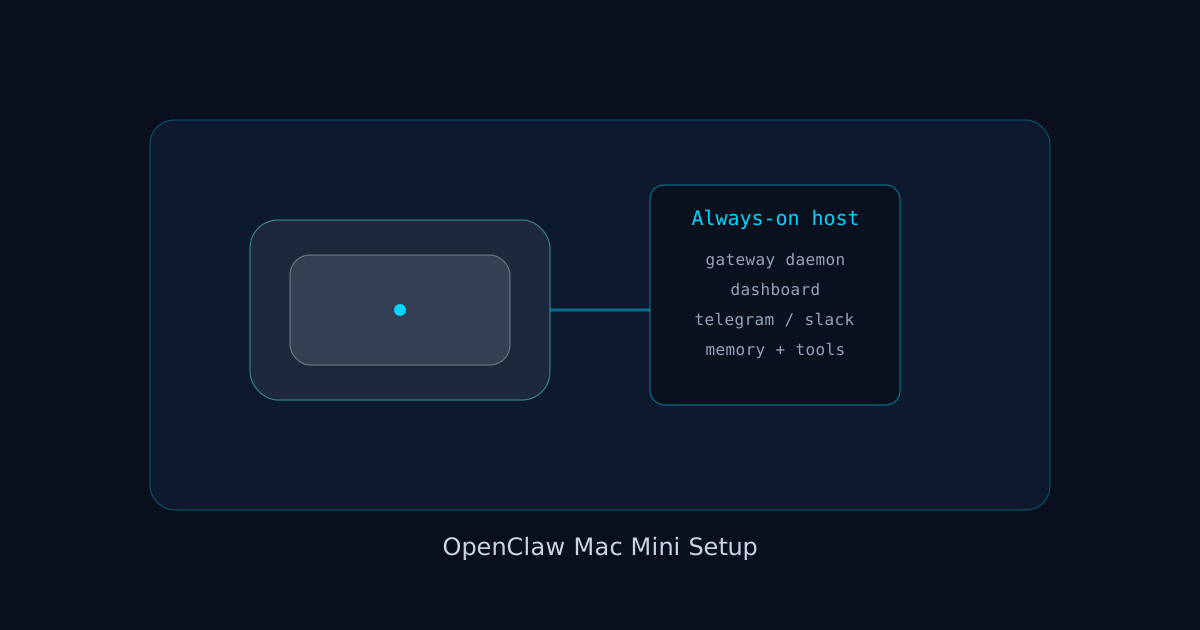
If you want a clean always-on home setup for OpenClaw, a Mac Mini is one of the best machines to use. The practical path is: install OpenClaw, run onboarding with daemon install, verify gateway health, open the dashboard, then configure channels and memory so the machine behaves like a stable personal agent host.
That is the short answer.
The real reason people choose a Mac Mini is not just that it is small. It is quiet, stable, power-efficient, and easy to leave running all day without turning your desk into a server closet. If your goal is a personal OpenClaw box at home, a Mac Mini is a strong default.
This guide explains how to set it up well, what to watch for, and how to avoid the small mistakes that make "always-on" setups flaky.
Why a Mac Mini works so well for OpenClaw
A good always-on agent host needs a few things:
- it should stay powered on reliably
- it should not be annoying to live with
- it should handle browser, gateway, channels, and optional local tools without drama
- it should be easy to recover when something goes wrong
A Mac Mini checks all of those boxes.
For a home OpenClaw machine, that matters more than raw benchmark scores.
Step 1: Install OpenClaw on the Mac Mini
The docs show the standard macOS/Linux install script:
curl -fsSL https://openclaw.ai/install.sh | bashAfter install, verify the CLI is available:
openclaw --helpIf the shell cannot find the command, open a new terminal session or refresh your shell config.
Step 2: Run onboarding with daemon install
For a Mac Mini, this is the important part:
openclaw onboard --install-daemonThat does more than provider setup. It also installs the managed gateway daemon path, which is what makes the Mac Mini useful as an always-on host instead of just a machine where you occasionally start OpenClaw manually.
After onboarding, verify the gateway is healthy:
openclaw gateway statusStep 3: Open the dashboard and send a real test message
openclaw dashboardThen send a test message and confirm you get a reply.
Do not treat "install completed" as success. For an always-on machine, success means:
- gateway is running
- dashboard opens
- a real message round-trip works
Step 4: Run doctor before you call it done
openclaw doctorIf anything looks off:
openclaw doctor --repairThe doctor command is especially useful on a Mac Mini because home setups often accumulate odd environment issues over time, especially after updates, path changes, or older test installs.
How to think about a Mac Mini OpenClaw setup
Treat the Mac Mini as infrastructure, not as a dev laptop.
That means:
- stable power
- stable network
- predictable startup behavior
- minimal unnecessary local experiments on the same machine
You can absolutely use one Mac Mini for both everyday experiments and always-on OpenClaw hosting, but the cleaner pattern is to treat the host like a little appliance.
The more predictable the machine, the more useful the agent becomes.
Best practices for an always-on home agent box
Keep the gateway daemon-managed
If you want reliability, use the managed daemon path from onboarding. Do not rely on manually starting the gateway in a terminal tab and hoping it stays alive.
Use doctor after meaningful changes
If you change model providers, tokens, channels, or service config, run:
openclaw doctorThat catches issues before they become "why did my home agent stop replying?"
Pick a primary channel early
The getting started docs point to Telegram as one of the fastest channels to set up. That makes sense for a Mac Mini because once the host is running, phone-based interaction becomes the real value.
A practical path is:
1. install OpenClaw
2. confirm dashboard works locally
3. add Telegram or another primary chat surface
4. test from your phone
That turns the Mac Mini into something you actually use instead of something that merely runs.
Keep memory and workspace design intentional
A stable always-on host gets much more valuable when the agent has useful memory and predictable workspace files.
Good next steps after initial setup:
Common Mac Mini setup mistakes
Mistake 1: Using it like a laptop instead of a host
A host should be boring. If the Mac Mini is constantly being repurposed, sleeping unpredictably, or used as a random experiment machine, the OpenClaw setup becomes less reliable.
Mistake 2: Not separating install success from operational success
Install success is not the same as operational success. For a Mac Mini host, operational success means the gateway survives reboots, channels still work, and doctor stays clean after updates.
Mistake 3: Ignoring environment override issues
The OpenClaw doctor docs call out a specific macOS issue: launchctl environment overrides can keep stale gateway token or password values alive and cause persistent unauthorized errors.
The docs show:
launchctl getenv OPENCLAW_GATEWAY_TOKEN
launchctl getenv OPENCLAW_GATEWAY_PASSWORD

launchctl unsetenv OPENCLAW_GATEWAY_TOKEN
launchctl unsetenv OPENCLAW_GATEWAY_PASSWORD
This is one of the highest-value Mac-specific troubleshooting checks because it creates confusing failures that look like config bugs.
Mistake 4: Overcomplicating the first setup
You do not need every channel, every plugin, and every local-model experiment on day one. Get one solid provider, one working dashboard, one working chat channel, and one stable daemon-managed gateway. Expand from there.
Should you use local models on the Mac Mini?
Maybe, but do not make that your first problem.
If your main goal is an always-on assistant host, start with a cloud provider so the baseline is easy to validate. Once the setup is stable, you can explore Ollama or CLI backends if the hardware and workload make sense.
That staged approach makes debugging much easier.
A good first-week Mac Mini setup plan
Day 1:
- install OpenClaw
- onboard with daemon install
- verify gateway
- test dashboard
Day 2:
- connect Telegram or another primary channel
- test remote messaging from your phone
Day 3:
- add memory and workspace rules
- refine system behavior
Day 4+:
- experiment with local models, CLI backends, or ACP sessions if you need them
That order keeps the base stable.
Mac Mini settings worth checking on day one
If the Mac Mini is going to be your always-on host, spend five extra minutes on the machine itself. Make sure it is on reliable power, connected to stable ethernet or strong Wi-Fi, and not configured in a way that constantly interrupts long-running background work. You want the box to feel boring. Boring is good.
Also check for anything that would make remote access frustrating later, like a browser session that signs out too aggressively or a host name you cannot easily recognize on your network.
What a good stable setup looks like after week one
By the end of the first week, a good Mac Mini OpenClaw setup usually has:
- one working primary model provider
- one working phone-friendly chat channel
- a clean
openclaw doctorresult - a known recovery routine if the gateway ever stops
- memory and workspace rules that make the agent actually useful
That is enough. You do not need the perfect setup. You need a setup you trust enough to leave alone overnight.
FAQ
Is a Mac Mini better than a laptop for OpenClaw?
For an always-on home agent host, usually yes. Laptops sleep, move around, and get repurposed. A Mac Mini is easier to leave in one place and keep stable.
Do I need the newest Mac Mini?
Not necessarily. The right choice depends on how much browser work, local-model work, and concurrent channel activity you want. For a normal always-on gateway and cloud-model setup, you do not need to chase the top-end machine.
What is the most important command after onboarding?
openclaw gateway status
openclaw doctor
Those two commands tell you whether the setup is actually healthy.
What is the most Mac-specific OpenClaw troubleshooting issue?
Stale launchctl environment overrides for gateway token or password values. The doctor docs call this out directly because it can cause stubborn auth failures.
Should I use the dashboard or go straight to a messaging channel?
Use the dashboard first to confirm the local system works. Then add a channel so the Mac Mini becomes useful from anywhere.
Is a Mac Mini good for OpenClaw plus Ollama?
It can be, depending on the model size and your expectations. But for first setup, get the gateway stable first. Add local-model complexity second.
What should I read next after Mac Mini setup?
Best next steps:
Official docs to cite: