Blog
How to Automate Repetitive Tasks with AI Agents (Step-by-Step)
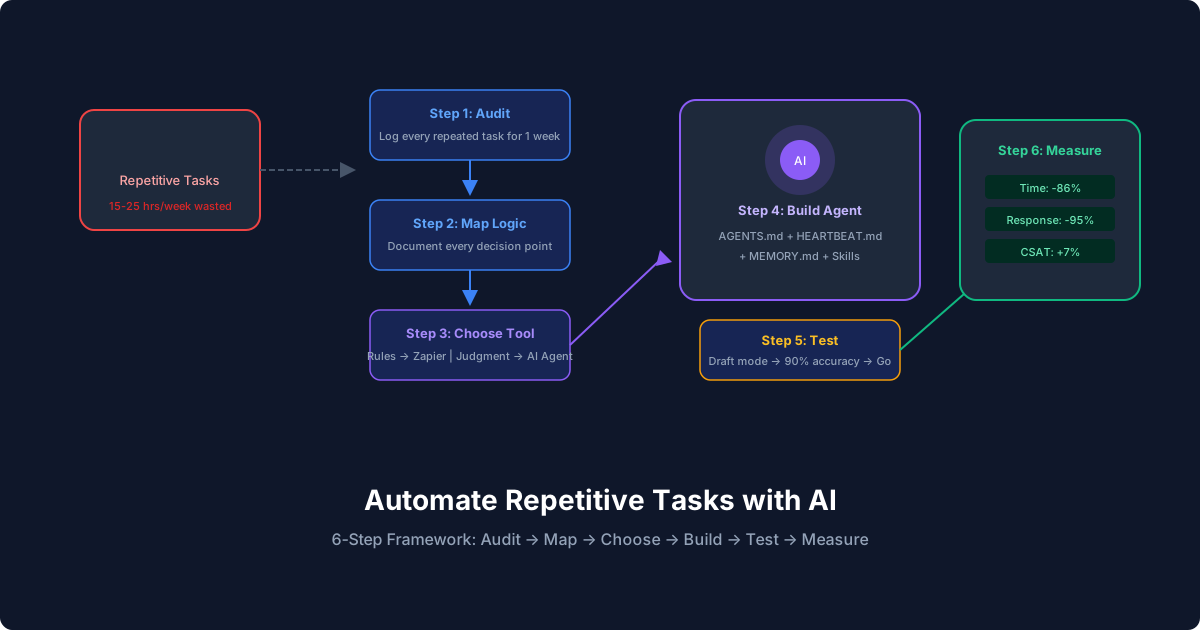
How to Automate Repetitive Tasks with AI Agents (Step-by-Step)
You probably have a mental list of tasks you do every week that feel like a waste of your time. Copying data between spreadsheets. Sending the same follow-up emails. Compiling weekly reports from three different tools. Sorting through customer feedback for patterns.
These are the tasks that AI agents are built for. Not the creative, strategic, high-judgment work. The repetitive grind that follows predictable patterns but still somehow requires a human because traditional automation tools can't handle the variability.
This guide walks through the exact process of identifying, prioritizing, and automating repetitive tasks with AI agents.
Step 1: Audit Your Repetitive Tasks
Before automating anything, you need a clear picture of where your time goes. Spend one week logging every task that meets these criteria:
- You've done it before in roughly the same way
- It follows a pattern (even if the inputs vary)
- It doesn't require deep creative thinking or relationship judgment
- A mistake would be annoying but not catastrophic
Here's a worksheet format:
| Task | Frequency | Time per occurrence | Current tool | Pattern complexity |
|------|-----------|--------------------|--------------|--------------------|
| Sort inbox into folders | Daily | 20 min | Gmail | Low |
| Compile weekly sales report | Weekly | 45 min | Sheets + CRM | Medium |
| Respond to FAQ inquiries | Daily | 30 min | Email | Low |
| Update social media | Daily | 25 min | Buffer | Medium |
| Categorize expense receipts | Weekly | 60 min | QuickBooks | Medium |
After one week, rank by total weekly time consumed. The top 3 are your automation candidates.
Step 2: Map the Decision Logic
For each candidate task, write out the complete decision tree. This is the step most people skip, and it's why their automations fail.
Take "Sort inbox into folders" as an example:
1. Read email subject and sender
2. Is it from a known client? → Move to Client folder
3. Is it a receipt or invoice? → Move to Finance folder
4. Is it a newsletter? → Move to Read Later
5. Is it spam that got through? → Delete
6. Is it a meeting request? → Check calendar, accept/decline
7. Everything else → Keep in inbox for manual review
Now here's the key insight: traditional automation can handle steps 1 through 5 (simple rules). But step 6 requires understanding your calendar context. And the "everything else" bucket is where AI agents earn their keep, because they can reason about ambiguous emails.
Document your decision logic for each task. Be thorough. Include the edge cases and exceptions. This document becomes your agent's instruction manual.
Step 3: Choose Your Automation Approach
Not every repetitive task needs an AI agent. Some are better handled by simple automation:
Use simple rules (Zapier, filters, scripts) when:
- Logic is purely if-then with no judgment
- Inputs are always structured the same way
- No context or memory needed between executions
Use AI agents when:
- Inputs vary in format (unstructured emails, different document layouts)
- Decisions require context from previous interactions
- You need the agent to compose text, not just route it
- Edge cases are common and hard to predefine
Most people automate too few things (they stop at simple rules) or try to AI everything (overkill for a simple filter). Match the complexity of the solution to the complexity of the problem.
Step 4: Build Your First Automated Task
Let's walk through automating a real task: daily customer inquiry response.
Install OpenClaw
npm install -g openclaw
openclaw init
Define the Task in AGENTS.md
# AGENTS.md - Customer Inquiry Handler

## Task: Respond to customer inquiries

### Process
1. Check support inbox every 30 minutes during business hours (8 AM - 6 PM CT)
2. For each new inquiry:
   a. Read the full email thread (not just the latest message)
   b. Classify: billing, technical, general, or sales inquiry
   c. Check MEMORY.md for prior interactions with this sender
   d. If covered by knowledge base: draft and send response
   e. If needs human judgment: draft response and flag for review
   f. If urgent (service outage, security): alert owner immediately

### Knowledge Base
- Product pricing: $29/mo starter, $79/mo pro, $199/mo enterprise
- Free trial: 14 days, no credit card required
- Refund policy: 30 days, prorated for annual plans
- Technical requirements: Modern browser, no software install
- API access: Pro plan and above
- Support hours: Monday-Friday, 8 AM - 6 PM CT

### Response Style
- Friendly but professional
- First name basis after initial greeting
- Keep responses under 150 words unless technical detail is needed
- Always include a clear next step or call to action

### Escalation Rules
- Cancellation requests: always flag for review
- Legal or compliance questions: forward to legal@company.com
- Feature requests: log in feature-requests.md, respond with acknowledgment
- Angry or frustrated tone: flag for personal response from founder
Set Up the Schedule
# HEARTBEAT.md
- Check support inbox for new messages
- Process any new inquiries per AGENTS.md guidelines
- Log all actions to memory/daily/YYYY-MM-DD.md
Or use cron for specific timing:
openclaw cron add --name "Support inbox check" \
  --schedule "*/30 8-18 * * 1-5" \
  --payload '{"kind":"agentTurn","message":"Check support inbox and process new inquiries"}'
Add Context Memory
# MEMORY.md

## Repeat Customers
- sarah@acmecorp.com: Enterprise plan, renewed in January, primary contact for Acme
- mike@startup.io: Pro plan, asked about API rate limits last month
- billing@bigco.com: Sends automated PO requests, always forward to accounting

## Recent Issues
- API latency spike on March 28 (resolved): some customers may follow up
- Pricing page had wrong Enterprise price for 2 hours on March 25 (corrected)
Step 5: Test Before You Trust
This is non-negotiable. Run your automation in "draft mode" for at least one week:
1. Agent processes inquiries but doesn't send responses
2. You review every draft response
3. Correct any mistakes by updating AGENTS.md or MEMORY.md
4. Track accuracy: how many responses were good enough to send as-is?
Target: 90%+ accuracy before enabling autonomous sending. If you're below 80% after a week, your instructions need more detail.
Common issues in the testing phase:
- Responses are too generic: Add more specifics to the knowledge base
- Agent misclassifies inquiries: Add clearer classification criteria
- Tone is off: Include example responses in AGENTS.md
- Edge cases aren't handled: Add them as you discover them
Step 6: Measure the Results
After 30 days of automated operation, measure:
| Metric | Before | After | Change |
|--------|--------|-------|--------|
| Time spent on task per week | 3.5 hours | 0.5 hours (review only) | -86% |
| Average response time | 4 hours | 12 minutes | -95% |
| Customer satisfaction | 4.2/5 | 4.5/5 (faster responses) | +7% |
| Errors requiring correction | N/A | 2 per week | Acceptable |
If the results are positive, move on to your next repetitive task and repeat the process.
Automating 5 More Common Repetitive Tasks
Weekly Report Generation
## Task: Generate weekly team report

### Process
1. Every Friday at 4 PM, pull data from:
   - Project management tool: tasks completed, in progress, blocked
   - CRM: new leads, deals closed, pipeline value
   - Support: tickets opened, resolved, avg response time
2. Generate report in standard template
3. Include comparison to previous week
4. Highlight anything that changed by more than 20%
5. Send to team Slack channel
Meeting Notes and Follow-Ups
## Task: Process meeting notes

### Process
1. After each calendar event marked "meeting", check for:
   - Recording transcript (if available)
   - Notes in shared doc
2. Summarize key decisions and action items
3. Send follow-up email to attendees with:
   - Summary (5 sentences max)
   - Action items with owners and due dates
   - Link to full notes
4. Create tasks in project management tool for each action item
Expense Categorization
## Task: Categorize weekly expenses

### Process
1. Every Monday, pull transactions from the past 7 days
2. Categorize each transaction:
   - Software/SaaS subscriptions
   - Travel and meals
   - Office supplies
   - Contractor payments
   - Marketing and advertising
   - Other (flag for review)
3. Match receipts to transactions where possible
4. Generate categorized summary for bookkeeper
5. Flag any transaction over $500 for verification
Social Media Content Scheduling
## Task: Weekly social content prep

### Process
1. Every Sunday evening, review this week's blog posts and news
2. Draft 5 social media posts (2 LinkedIn, 2 Twitter/X, 1 thread)
3. Each post should: reference a specific article, include a take or insight, end with engagement hook
4. Save drafts for review
5. After approval, schedule using publishing tool
Competitor Price Monitoring
## Task: Monitor competitor pricing

### Process
1. Check competitor pricing pages daily at 9 AM
2. Compare to last known prices in competitor-pricing.md
3. If any price changes detected:
   - Update competitor-pricing.md
   - Alert sales team with old vs. new comparison
   - Note any feature tier changes
4. Generate monthly pricing trend report
Building a Repetitive Task Automation Culture
The biggest win isn't any single automation. It's building the habit of asking: "Should this be automated?"
Create a running list. Whenever you or anyone on your team catches themselves doing the same thing for the third time, add it to the list. Prioritize by time consumed and difficulty to automate. Work through the list methodically.
Over six months, a small team can realistically automate 15 to 20 repetitive tasks, recovering 20 to 30 hours per week of collective time. That's a part-time employee's worth of output, redistributed from busywork to meaningful work.
Resources
- OpenClaw Documentation: Setup and configuration guides
- OpenClaw GitHub: Source code and examples
- AI Business Process Automation Guide: Broader automation strategy
- AI Tools for Business Automation: Tool comparison
- Building AI Agent Workflows: Technical workflow walkthrough
Frequently Asked Questions
Which repetitive tasks should I automate first?
Start with tasks that are high-frequency (daily), time-consuming (30+ minutes), and low-risk (mistakes are fixable). Email triage, report generation, and data categorization are strong first candidates because they're repetitive, follow patterns, and don't have catastrophic failure modes.How long does it take to automate a repetitive task?
Initial setup takes 1 to 3 hours for a simple task (email sorting) and 4 to 8 hours for a complex one (report generation with multiple data sources). Add one week of testing in draft mode before going fully autonomous. The setup time typically pays back within the first month.What if my repetitive task involves sensitive data?
Use a self-hosted AI agent framework like OpenClaw so data stays on your infrastructure. Define explicit data handling rules in your AGENTS.md file: what data the agent can access, what it can send externally, and what requires human approval. Never let an agent send sensitive data to external services without explicit permission.Can AI agents handle tasks that require judgment?
Yes, within defined parameters. AI agents handle routine judgment well (classifying emails, prioritizing tickets, drafting appropriate responses). They struggle with nuanced judgment that requires deep relationship context or political awareness. The key is defining clear escalation criteria for situations beyond the agent's decision authority.How do I know if the automation is working correctly?
Start with a one-week test period where the agent processes tasks but doesn't act on them. Review every output. Track accuracy rate (target 90%+ before going autonomous). After going live, spot-check a sample of 10% of automated actions weekly. Set up alerts for anomalies (unusual patterns, error spikes, escalation rate changes).What happens when the automated task needs to change?
Update the AGENTS.md or MEMORY.md files. Changes take effect immediately on the next execution cycle. This is one advantage of AI agent configuration over traditional automation: you update natural language instructions instead of rewiring logic diagrams or editing code.Can I automate tasks that involve multiple tools and data sources?
Yes. AI agent frameworks like OpenClaw support skills for dozens of integrations (email, calendar, CRM, project management, databases). Your agent can pull data from multiple sources, combine it, make decisions, and take action across different tools in a single workflow. This multi-tool orchestration is where AI agents significantly outperform simple rule-based automation.Related posts
View allAI Agent Runbook Template: How to Build Repeatable Agent Workflows
April 24, 2026
A practical AI agent runbook template for OpenClaw teams, including what to include, how to structure approvals and escalation, and how to turn one-off workflows into repeatable operations.
How to Install OpenClaw on Ubuntu
April 20, 2026
A practical guide to installing OpenClaw on Ubuntu, running onboarding, checking gateway health, and fixing the setup issues that trip up first-time installs.
OpenClaw Mac Mini Setup Guide: How to Run an Always-On Agent at Home
April 20, 2026
A practical guide to setting up OpenClaw on a Mac Mini, installing the gateway daemon, keeping it stable, and turning it into a reliable always-on home agent box.